
Choosing the right master scheduling software can feel a bit like comparing red apples to green apples. Every tool claims to be “easy to use”, “saves time”, and “powerful”. But what do those words mean for your day-to-day scheduling process? And do they have comparison charts to make things easier?
To help with your decision-making process, we have broken down the features that truly matter in school scheduling. Below, we break down what features for school scheduling and how to assess them side by side. While we won’t call out any names too loudly (ahem, Orchestra), these comparison charts will guide you to ask the right questions and spot the differences that impact your workflow.
- What Does Manual Scheduling Look Like?
- 1. Collaboration & Accessibility
- 2. Drag-and-Drop Interface
- 3. Conflict Detection & Validation
- 4. Advanced Scheduling Capabilities
- 5. Portals, Reporting & Notifications
- 6. Simple Scheduler vs. Master Scheduler: What’s the Difference?
- 7. Online vs. On-Site Schools: Different Environments, Different Scheduling Needs
- Final Thoughts: Choose What Fits Your Needs
What Does Manual Scheduling Look Like?
But first, let’s discuss how scheduling is often done manually in many schools.
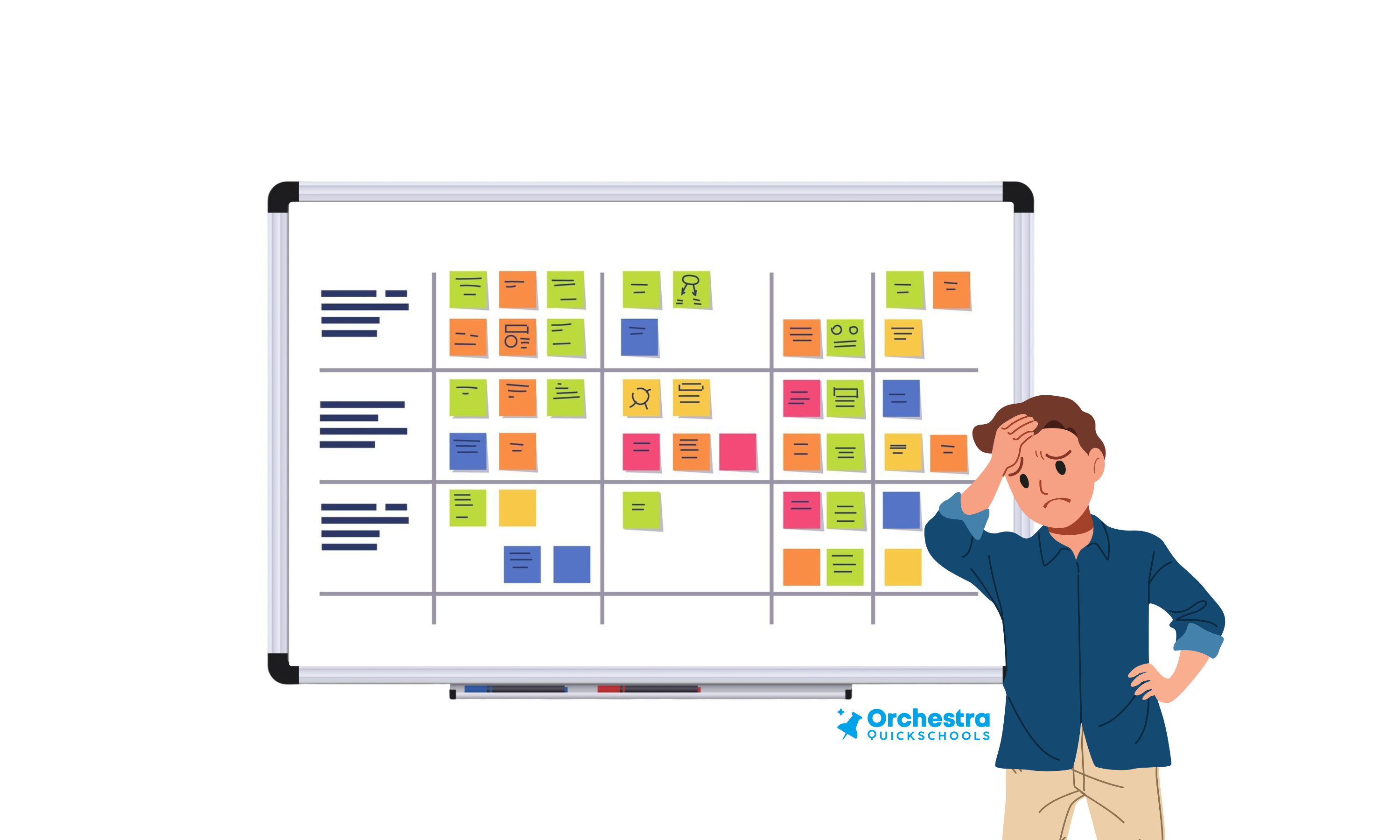
If you’ve ever walked into a scheduling office mid-spring, you might have seen a giant whiteboard filled with class names, teacher initials, and periods—maybe even color-coded sticky notes or magnets. This is where school admins spend weeks shuffling around courses, making sure everything lines up just right. Need to move a class? That’s erasing, rewriting, maybe shifting five other things to make it work.
Sometimes it’s all done in spreadsheets—hundreds of rows tracking students, teachers, and rooms. Every change risks a new conflict, and every change takes time.
This old-school method works, but just barely. It’s fragile, stressful, and very hard to scale. And let’s be real—it’s exhausting. Once you’ve seen how much work it takes to manage all that manually, it’s easier to appreciate what digital tools can offer—even just automating one part of the process can save hours.
Side Note: Understanding the Symbols in Our Comparison Charts
To make it easier to compare features at a glance, we’ve included icons that indicate the level of support each scheduler offers.
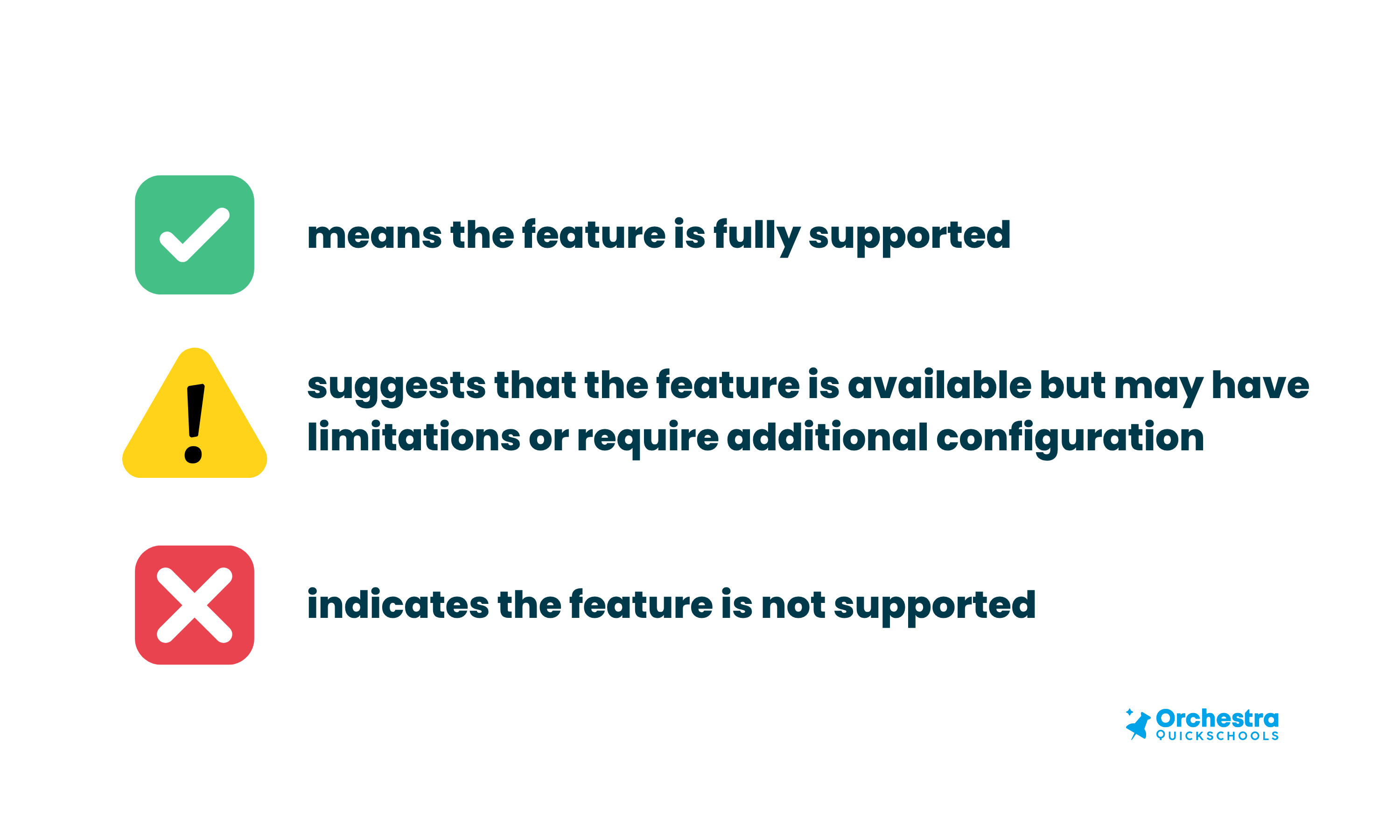
This way, you can quickly spot where a solution might meet your needs—or fall short.
1. Collaboration & Accessibility
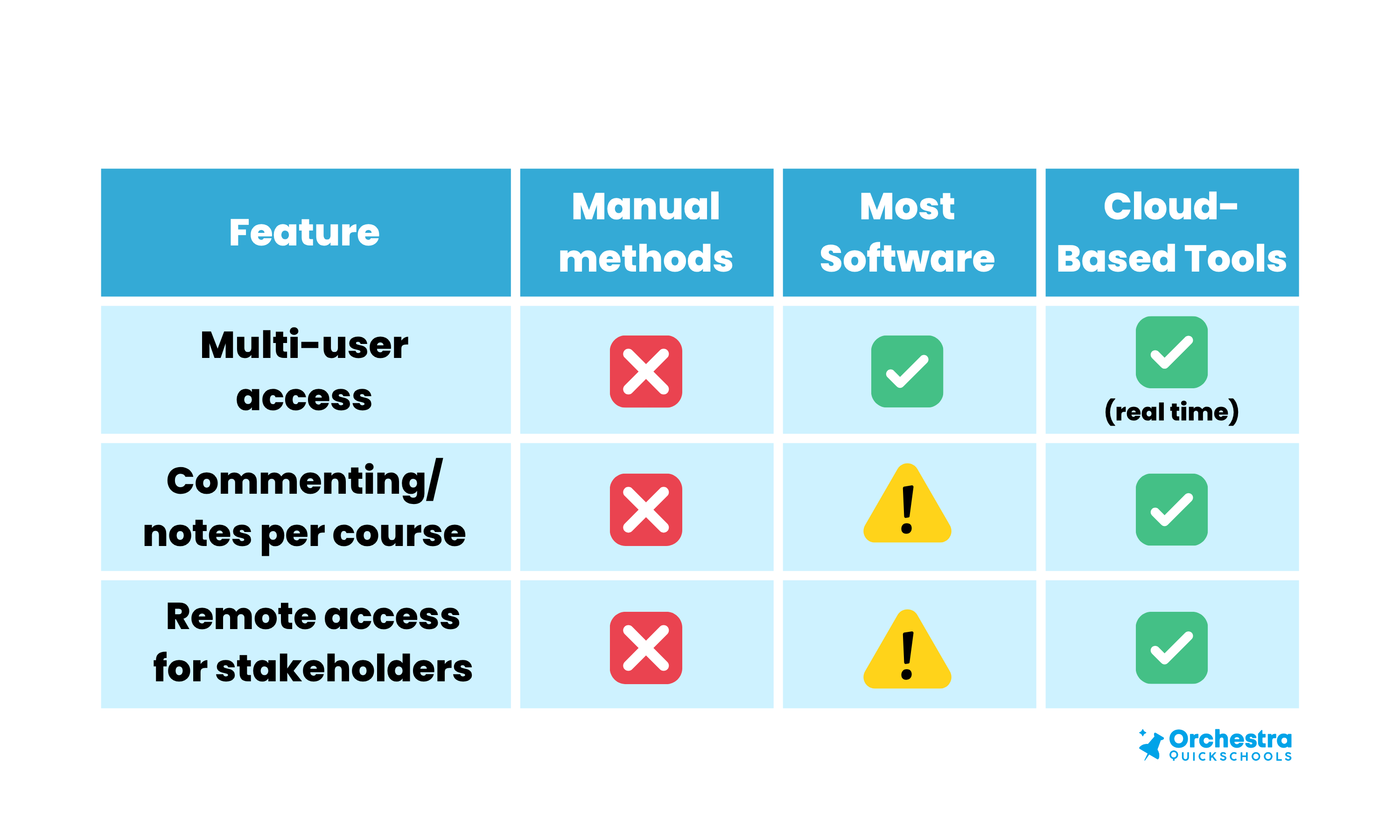
Why it matters: With input coming from counselors, principals, department heads, and even students, the ability to collaborate live is essential. You don’t want to be chasing down sticky notes when someone changes a course request.
2. Drag-and-Drop Interface
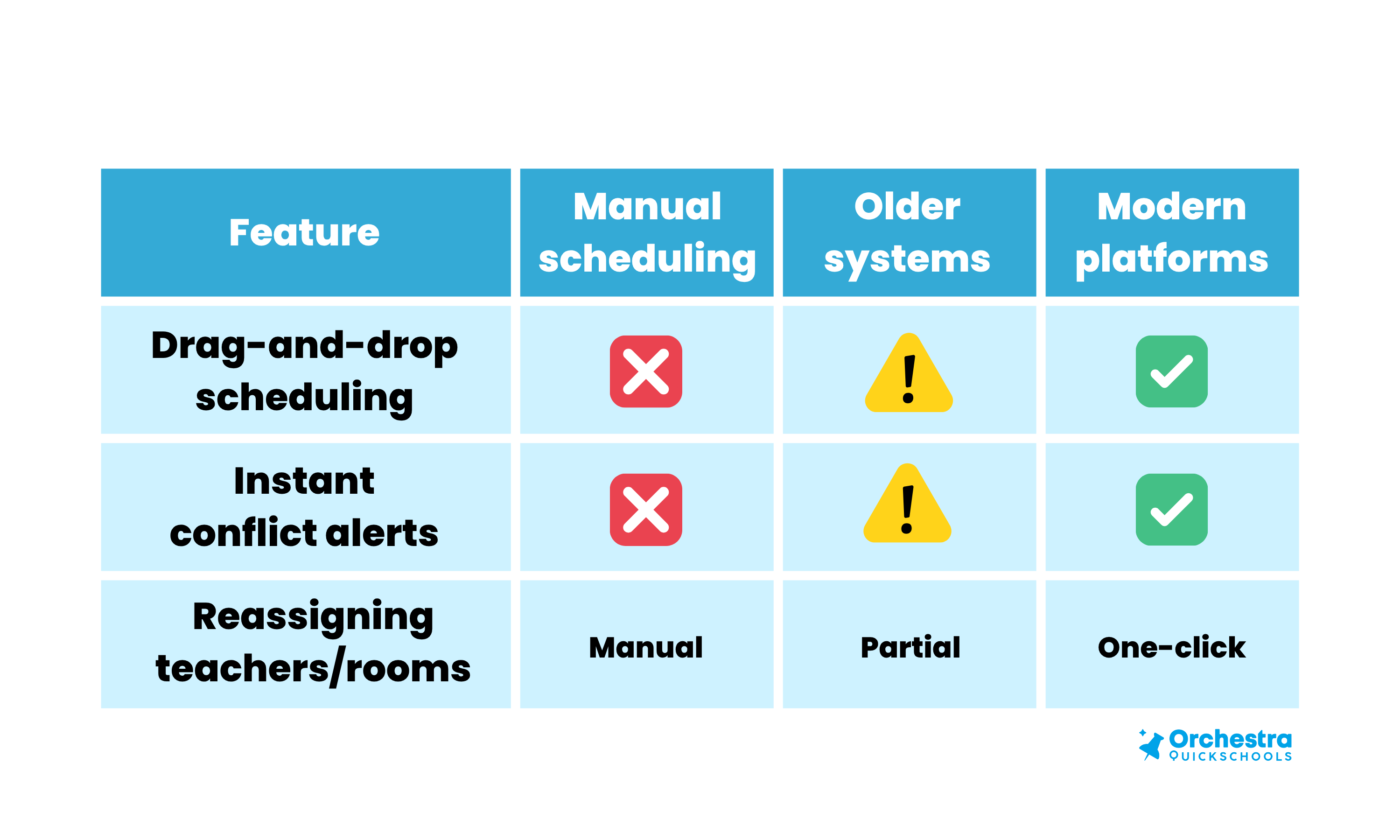
Why it matters: Drag-and-drop scheduling tools allow for quick adjustments, testing different layouts, and resolving conflicts without the need to rebuild from scratch. They’re especially valuable when navigating complex scheduling needs across departments and staff. Many schools are still creating their master schedules manually—using whiteboards, sticky notes, or spreadsheets—which means a feature like this isn’t even an option. Switching to a digital scheduler can dramatically reduce the time it takes to build or modify a schedule. What once took days might now take minutes.
3. Conflict Detection & Validation

Why it matters: Catching conflicts early saves you headaches later. Especially when you’re juggling hundreds of students, diverse course offerings, and limited staff, it’s a lot to keep track of without help. Bonus points if the tool can handle complex rules like singleton balancing automatically.
4. Advanced Scheduling Capabilities
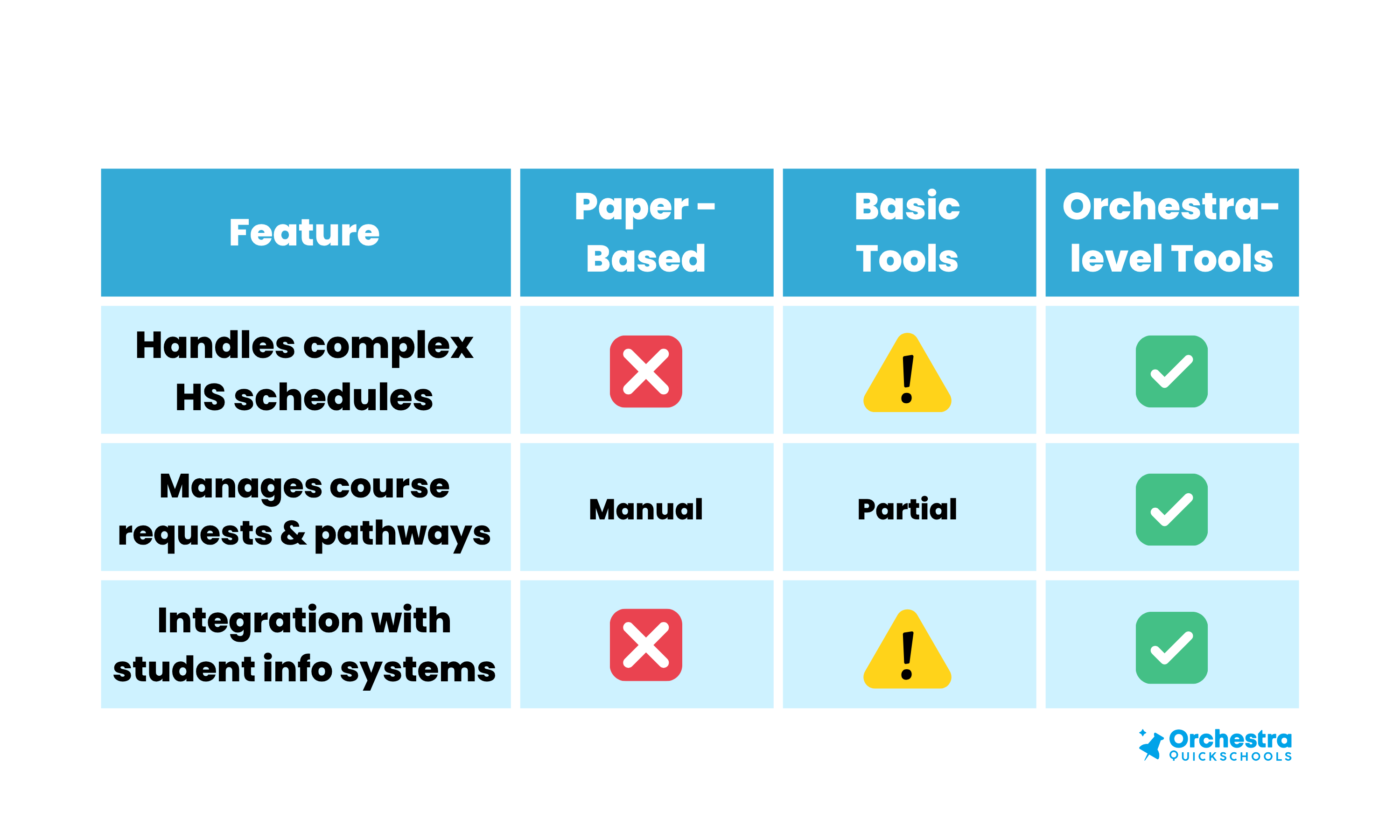
Why it matters: Some schedulers are built with elementary schools in mind. If you’re scheduling high schools with AP tracks, electives, or block scheduling, you’ll want a system that’s built to handle that complexity.
5. Portals, Reporting & Notifications
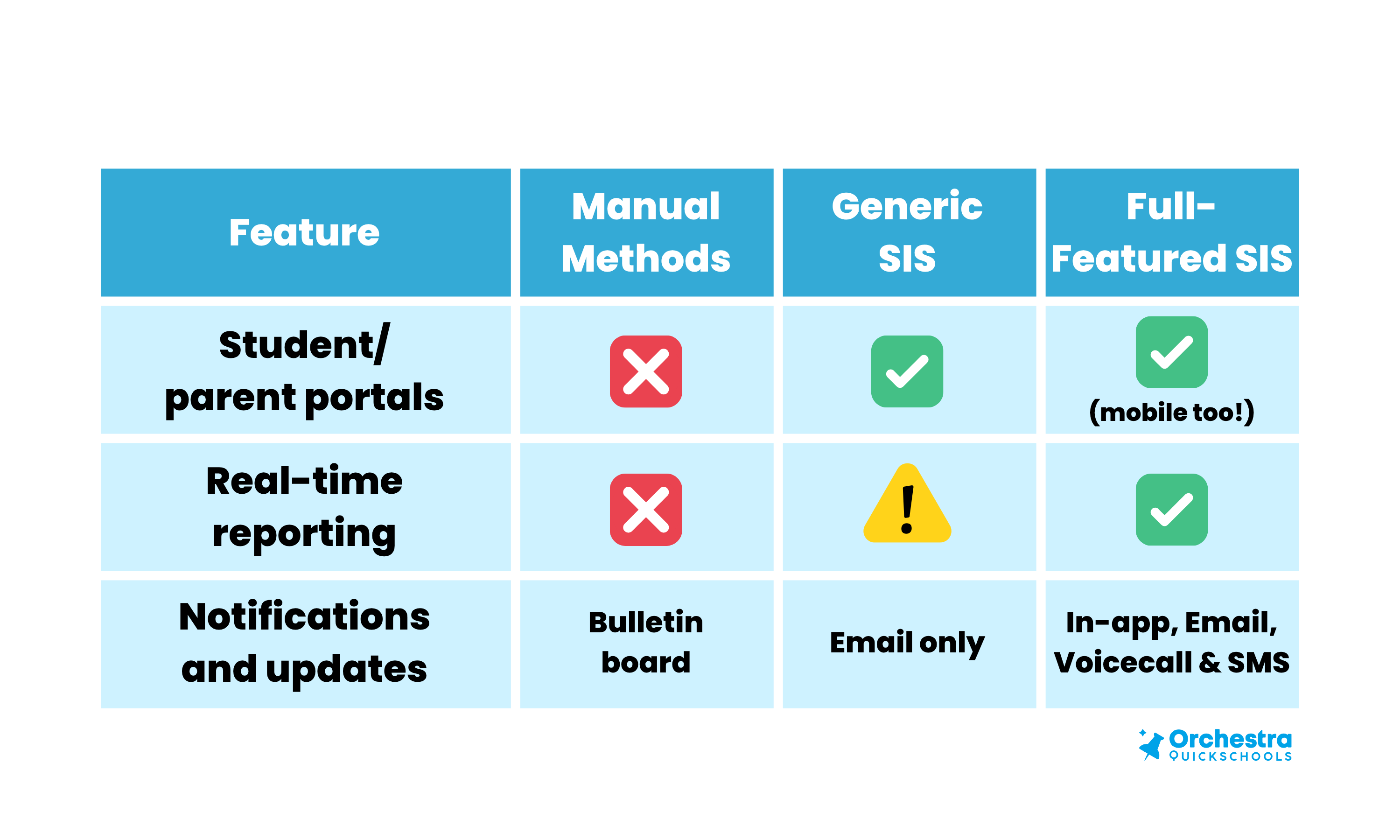
Why it matters: Keeping students and parents in the loop shouldn’t feel like an extra job. Look for platforms that do it for you, especially if it can be scheduled or automated.
6. Simple Scheduler vs. Master Scheduler: What’s the Difference?

Not all scheduling tools are created equal. A simple scheduler might be fine for a small school or for elementary and middle schools with a basic timetable. However, if you’re juggling electives, block periods, co-teaching setups, and student course requests, you’ll quickly hit a wall.
Why it matters:
If your school grows—or just gets more complex—a simple scheduler can start to feel like a paper calendar with a pretty interface. Master scheduling software, by contrast, is designed to handle complexity and scale as your school grows. They’re the kind of tools that grow with you, not against you.
7. Online vs. On-Site Schools: Different Environments, Different Scheduling Needs

When it comes to scheduling, context is everything. Whether a school operates on-site, online, or somewhere in between (hello, hybrid learning!), each setting has unique demands.
Why it matters:
A one-size-fits-all scheduler won’t cut it anymore. Online schools may need tools that support flexible time zones and asynchronous learning paths, while on-site schools require conflict resolution for rooms, bells, and even hallway congestion.
When you’re using a scheduling tool that can handle both models—or even shift between them seamlessly—you’re future-proofing your school’s operations.
Side note: Some platforms, like Orchestra, are built to flex with your school’s evolving needs, whether you’re running a virtual academy, a traditional high school, or anything in between.
Final Thoughts: Choose What Fits Your Needs
Feature comparison charts aren’t just about checking boxes. It’s about asking: What features will save our school time? Which tools will reduce errors? How easy is it to get started or get support?
When evaluating your options, don’t just go for the biggest name—go for the system that actually solves your school’s specific pain points. Take advantage of free trials or live demos to see these features in action and speak directly with experts about your school’s unique needs. From there, you can really get a sense of whether the software will help your school’s needs. Whether you’re trying to ditch the whiteboard or build a schedule that makes everyone happy, having the right tool can make all the difference.
Want to see how your current setup compares? Check out this detailed blog post on the benefits of an online master scheduler—it breaks it all down.
Have questions or want help figuring out where your school stands? We’re always happy to chat.

 Blog
Blog 